
Cornix
Product Introduction
Cornix is a fully wireless split ergonomic keyboard produced by JazeilFunder, featuring:
- Wireless Split Design: Left hand as central, right hand as peripheral
- Dual Connection Mode: Supports both Bluetooth and USB connections
- Advanced Features: Supports macros, Home row modifiers, combos, etc.
- RGB Indicators: Two RGB indicator lights on each hand to display different statuses
Indicator Lights
Left Hand (Central):
- Left Light: Indicates Bluetooth connection status
- Green, Red, Blue represent channels 1/2/3 respectively
- Breathing effect indicates broadcasting
- Breathing to solid light and then off indicates successful connection
- Right Light: Battery level and peripheral connection indicator
- Low battery: Red blinking
- Charging: Green breathing
- Peripheral not connected (searching): Blue breathing
Right Hand (Peripheral):
- Left Light: Battery indicator
- Low battery: Red blinking
- Charging: Green breathing
- Right Light: Central connection indicator
- Central not connected (searching): Blue breathing
Connection Methods
USB Connection
- Connect the USB cable only to the central (left hand)
- The USB port on the right hand is only for charging, not for data transmission
Bluetooth Connection
Cornix supports up to 3 Bluetooth devices, switch method:
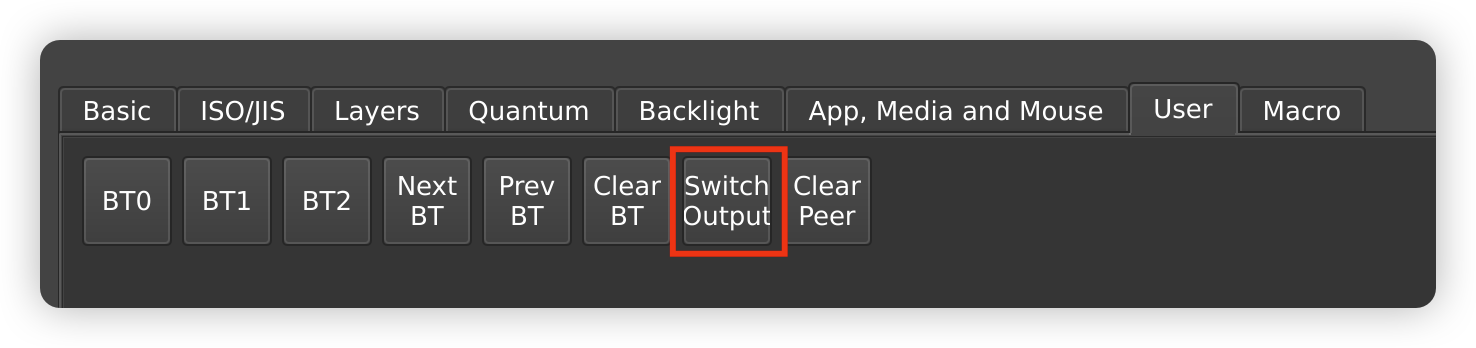
- Use BT0, BT1, BT2 in the User tab of Vial to switch between corresponding devices
Connection Mode Switching
Cornix supports two connection modes: USB priority mode and Bluetooth priority mode. The default setting is "USB Priority" mode.
USB Priority Mode:
- When the central is connected via USB: The keyboard automatically switches to connect to the computer through USB, and Bluetooth does not work
Bluetooth Priority Mode:
- When Bluetooth is connected, USB is only used for charging. When Bluetooth is not connected, the keyboard can connect to the computer via USB.
Switching method: Through the Switch Output button in the User tab of Vial
Key Remapping
Cornix supports both wired and wireless Vial key remapping, steps:
- Open the official website: https://vial.rocks
- Click "Start Vial", select "Cornix" in the upper left corner
- After successful connection, you can customize the keys
Note: Wireless mode may experience connection errors due to signal interference. If connection fails, please retry or switch to wired mode. Key mapping settings are effective in both modes.
Sleep mode
Cornix will automatically enter sleep mode when not used for an extended period.
- When connected to a device: Sleep mode maintains Bluetooth connection, no keystrokes will be lost after waking up
- In broadcasting state: After sleep, press any letter key to wake up, Cornix can only be found in Bluetooth device search after waking up
Central & Peripheral Pairing
Automatic Pairing
- When first powered on, the main and peripherals will automatically pair without manual setup
- After successful pairing, they will automatically connect each time the keyboard is turned on
Unpairing
To unpair, follow these steps:
- Open Vial, go to the User tab
- Set any key as the Clear Peer key
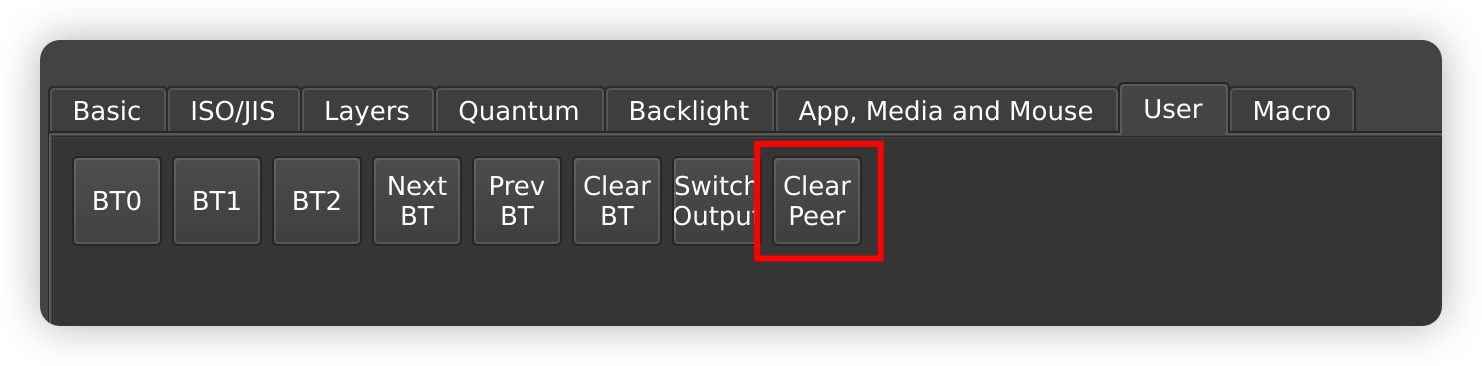
- Press and hold the Clear Peer key for more than 8 seconds, the main and peripherals will unpair
- To prevent the main and peripherals from automatically pairing again, you must restart the keyboard for the changes to take effect:
- Disconnect the USB connection
- Turn off the power
- Wait 3 seconds before turning the power back on
Re-pairing
After restarting, unpaired main and peripherals will automatically enter search mode and pair automatically when powered on.
Note: If you need to pair specific main and peripherals, restart them simultaneously and wait for them to complete pairing before turning on other keyboards.